

What You Can Sync
From HubSpot to BuildBetter:- Contacts → People
- Companies → Companies
- Tickets → Conversations
- Meeting summaries → Meeting engagements on contacts and companies
Setup Instructions
Prerequisites
- Active HubSpot account with appropriate permissions
- BuildBetter organization admin access
Connection Steps
-
Navigate to Integrations
- Go to Settings → Integrations in BuildBetter
- Find HubSpot in the CRM category
-
Connect Your Account
- Click “Connect” to authorize BuildBetter
- Sign in to your HubSpot account if needed
- Review and approve the permissions BuildBetter needs to sync your data
- Configure Sync Settings After connecting, choose which data to sync (see Configuration Options below)
Configuration Options
Sync Contacts & Companies
Toggle: Sync Contacts & Companies Enable this to sync HubSpot Contacts and Companies to BuildBetter’s People and Companies. Contact Properties to Sync: Choose which contact fields to sync. By default, we sync:- Email (required)
- First name
- Last name
- Associated company
- Phone numbers (phone, mobilephone)
- Address fields (address, city, state, zip, country)
- Company info (company name, job title, website)
- Lifecycle data (lifecycle stage, close date, original source)
- Activity timestamps (last contacted, last activity date)
- Name (required)
- Domain (required)
- Basic info (website, description)
- Address fields (address, city, state, country, phone)
- Business data (industry, annual revenue, number of employees)
- Owner and relationships (HubSpot owner, parent company)
- Social media (LinkedIn, Twitter, Facebook pages)
Syncing Custom Properties
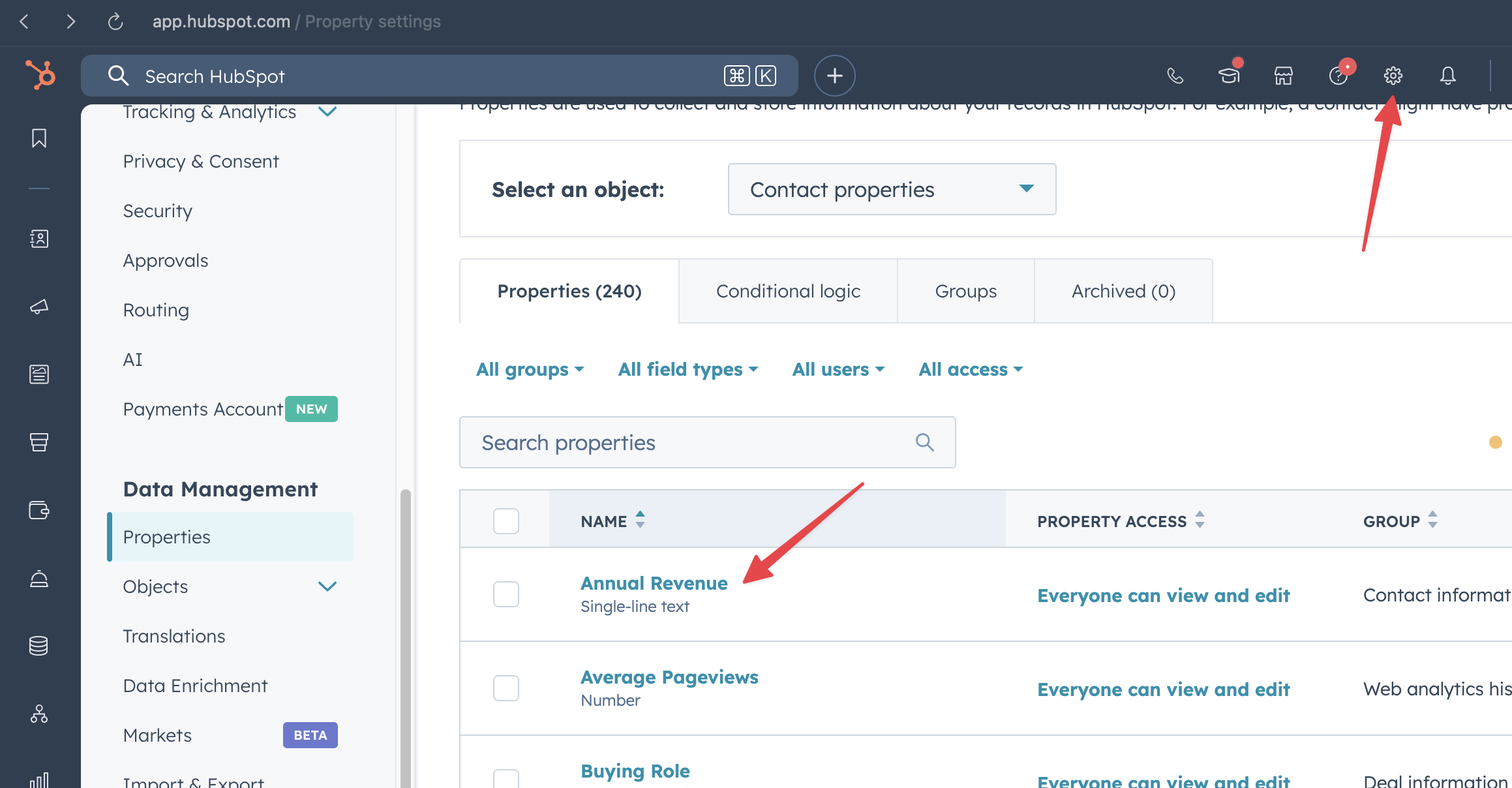
You can sync any property from HubSpot—not just the ones listed above. This includes custom properties specific to your HubSpot account. How to add a custom property:- Find the property in HubSpot
- Go to Settings (gear icon) → Data Management → Properties in HubSpot
- Select the object type (Contact properties or Company properties)
- Find the property you want to sync
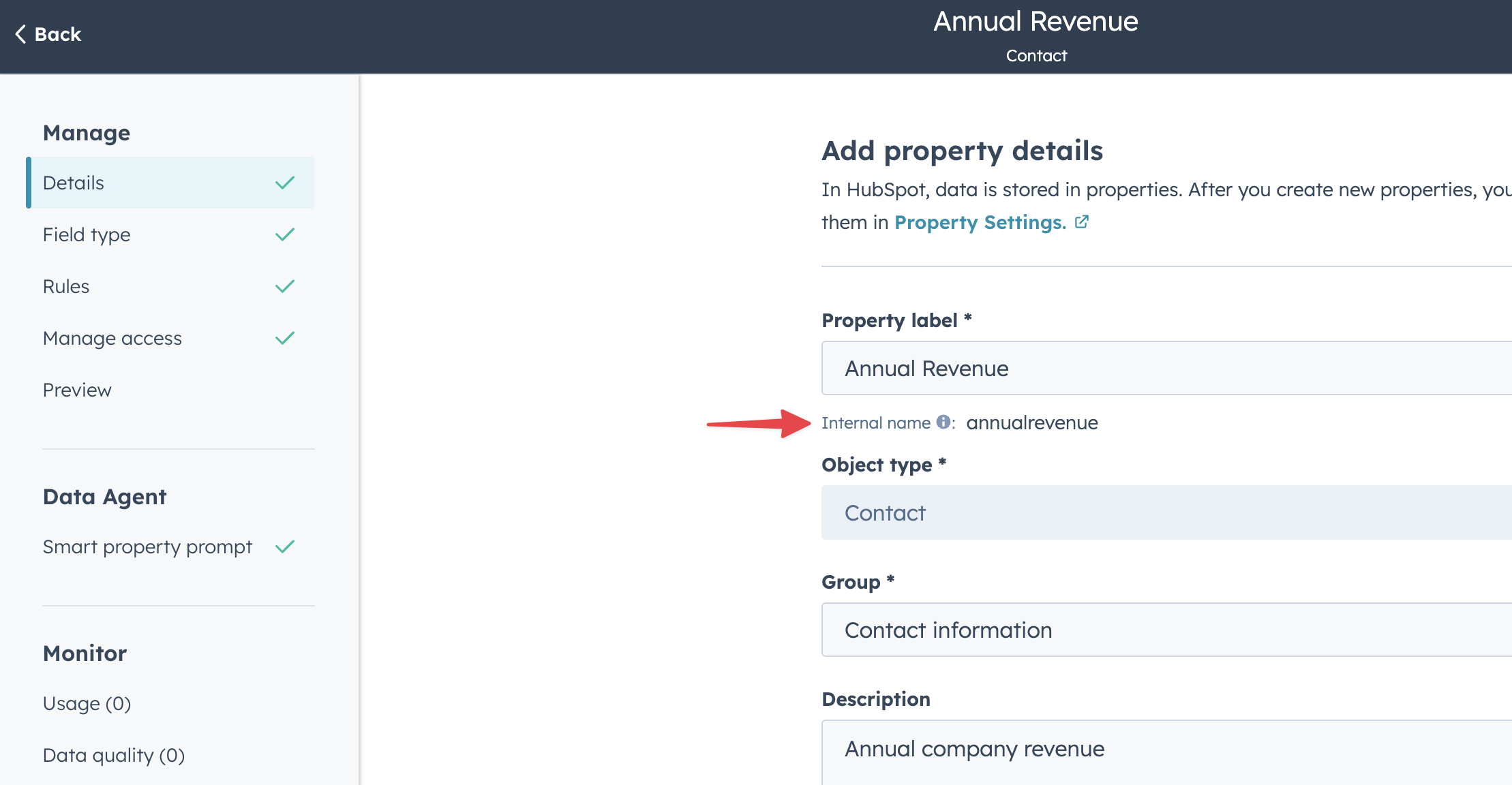
- Get the internal name
- Click on the property to view its details
- Copy the Internal name (shown below the property label)
- This is what you’ll enter in BuildBetter
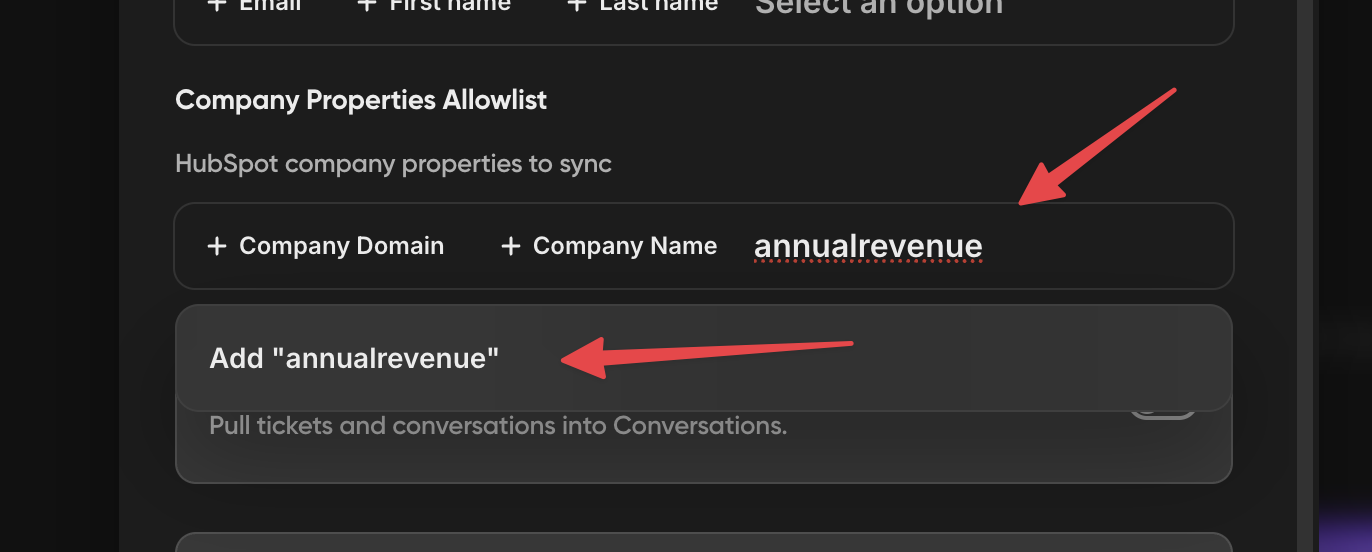
- Add the property in BuildBetter
- Go to Settings → Integrations → HubSpot in BuildBetter
- Scroll to “Contact Properties Allowlist” or “Company Properties Allowlist”
- Type the exact internal name from HubSpot
- Click “Add”
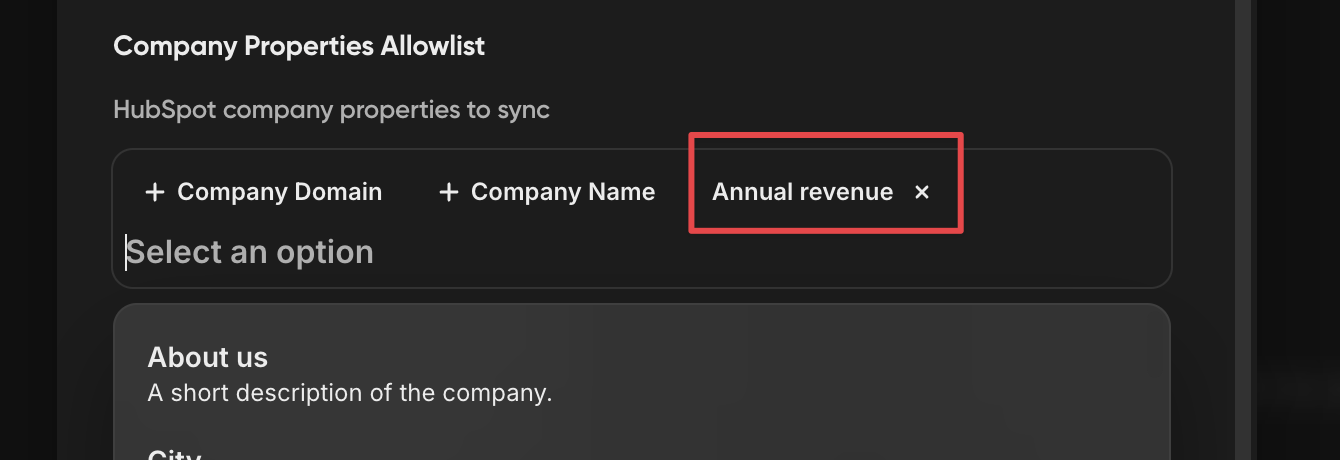
- Verify it was added
- The property will appear in your sync list
- It will be synced on the next sync cycle (every 4 hours)
The internal name must match exactly (case-sensitive). For example, if HubSpot shows the internal name as
annualrevenue, you must enter annualrevenue in BuildBetter—not AnnualRevenue or annual_revenue.Sync Tickets to Conversations
Toggle: Sync Tickets to Conversations Enable this to pull HubSpot support tickets into BuildBetter Conversations. What gets imported:- Ticket details (subject, content, status)
- Ticket owner
- Associated contacts and companies
- All conversation threads and messages
- Email exchanges and activities
- Comments and internal notes
Recording Summaries to Contacts
Toggle: Recording Summaries to Contacts Enable this to automatically push BuildBetter meeting summaries to HubSpot as Meeting engagements. What gets created in HubSpot:- Meeting record with title, date, and time
- AI-generated summary in the meeting body
- Full summary and recording link in internal notes
- Automatic association with meeting attendees (as HubSpot contacts)
- Automatic association with attendee companies
- Creates new HubSpot contacts if attendees don’t exist
- Won’t create duplicate meetings (checks by title and time)
- Only updates missing fields on existing meetings
Sync Schedule
The integration syncs automatically every 4 hours:- First sync pulls data from the last 5 days
- Subsequent syncs only pull new or updated records
- Incremental contact syncs use HubSpot’s reliable update timestamp to avoid missed records
Slack CRM Contact Search
When capturing feedback in Slack, you can search for and select an existing HubSpot contact directly from the feedback modal. BuildBetter automatically deduplicates the contact and creates or updates the matching person record, keeping your feedback tied to the right HubSpot identity without leaving Slack.Meeting Export Validation
When BuildBetter pushes meeting summaries to HubSpot, meetings with invalid time ranges (for example, an end time before the start time) are skipped safely so they never break the sync. The rest of the export continues normally and the affected meeting is logged for review.Troubleshooting
Connection Issues
“HubSpot authentication failed”- Disconnect and reconnect the integration
- Check the error message in Settings → Integrations
- Try reconnecting the integration
Data Not Syncing
Contacts not appearing in BuildBetter- Make sure “Sync Contacts & Companies” is enabled
- Verify contacts have email addresses (required for sync)
- Check that contacts were recently modified (within the sync window)
- Wait for the next sync (every 4 hours) or trigger a manual sync
- Verify contacts have an associated company in HubSpot
- Ensure the company has a valid domain (non-personal email domains like gmail.com won’t sync)
- Make sure “Sync Tickets to Conversations” is enabled
- Verify your HubSpot account has access to tickets and conversations
- Check that the ticket was recently updated
- Verify “Recording Summaries to Contacts” is enabled
- Ensure meeting attendees have email addresses
- Check that the recording has finished processing in BuildBetter
- Look for the meeting in HubSpot under the attendee’s contact record
Support
Need help?- Check your connection status: Settings → Integrations → HubSpot
- Contact BuildBetter support with your connection ID and any error messages